
Blinkshot
Screenshot now, decide later.
Blinkshot works with the screenshot tools built into macOS. After you take a screenshot, keep it, move it to the Trash, or keep it for a little while.
Requires macOS 27 or later.
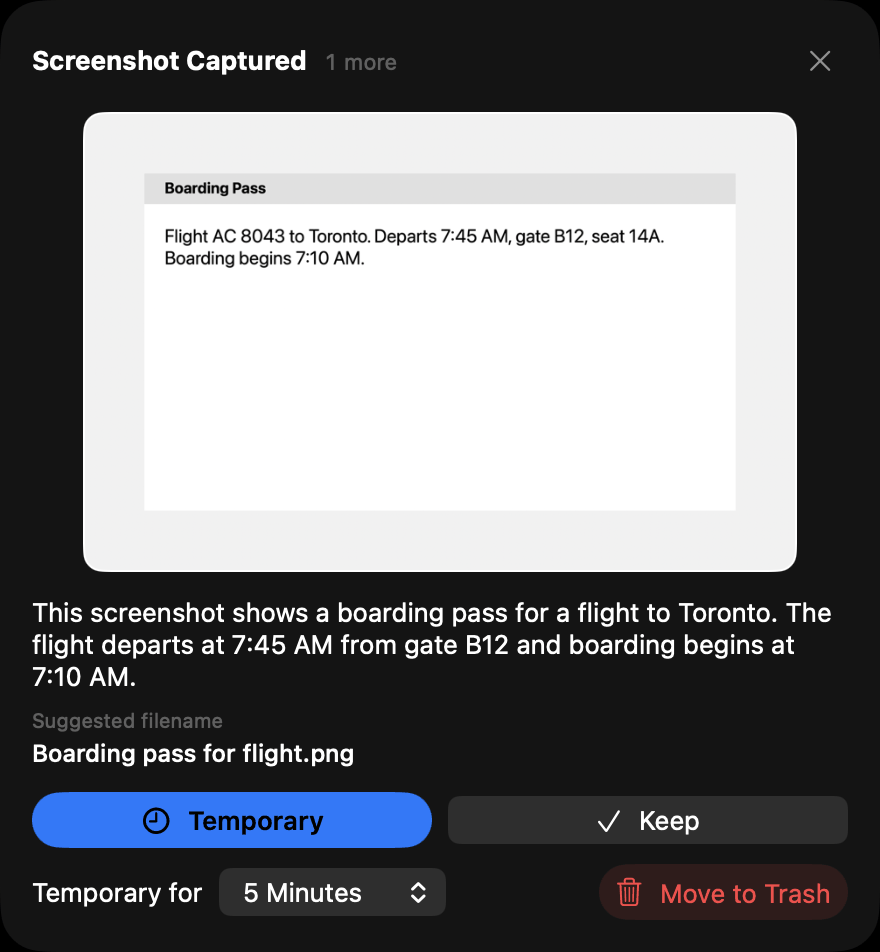
Decide right after you capture.
Take a screenshot the way you always do. A small popup appears in the corner of your screen. Temporary keeps the screenshot for a set time. Keep saves it with no timer. Move to Trash moves it to the Trash right away.
Take several screenshots in a row, and the popup shows them one at a time. To decide without reaching for the pointer, press Control-Shift-Command-B in any app.
Blinkshot finds new screenshots in the folder where macOS saves them. It reads that setting to open the right folder for you, and it never changes it.
Let short-lived screenshots go.
Many screenshots are useful for only a few minutes. Mark one Temporary for 1 minute, 5 minutes, 15 minutes, 1 hour, or until the end of the day. When the time is up, Blinkshot moves it to the Trash, where you can still recover it.
Changed your mind? Select the screenshot in the Inbox and click Keep. If you rename or move it in Finder, Blinkshot keeps it too.
Review everything in the Inbox.
The Inbox lists the screenshots Blinkshot is tracking, with their status and when they arrived. Keep a screenshot, move and rename it, or open it with Quick Look. Remove from Inbox takes a screenshot off the list and leaves the file where it is.
Crop a screenshot, or extract a window from it, into a new image. The original doesn’t change. You can also extract the text in a screenshot and copy it.
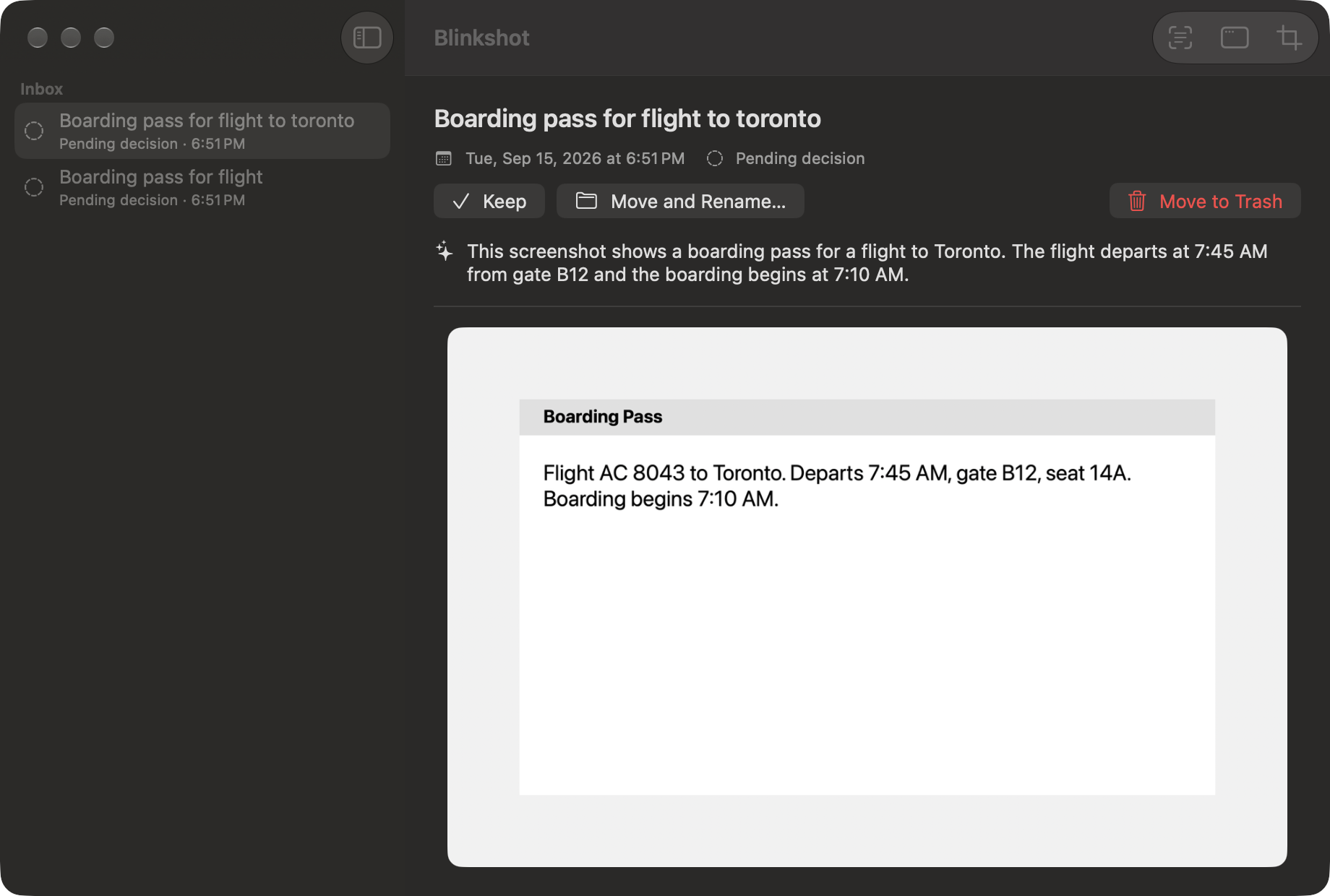
Descriptions, made on your Mac.
With Apple Intelligence turned on, Blinkshot describes each screenshot and suggests a filename, so it’s easier to recognize later. The image and its text are processed on your Mac, not sent to a cloud service.
Blinkshot doesn’t collect data or record your screen. It works only with the folder you choose. Read the privacy policy
Requirements
- Operating system
- macOS 27 or later
- Descriptions
- A Mac that supports Apple Intelligence, with Apple Intelligence turned on. Text extraction works without it.
- Screenshots
- The screenshot shortcuts and Screenshot app built into macOS. Screenshots copied only to the clipboard aren’t detected.
- Account
- None needed